 Gabreel
What you get
The same layout as the Avatar explainer, with you in place of the avatar:
- Top
- A short title for the current part of the reel.
- Middle
- Graphics that build on the words you say: lists, numbers, charts, screens. This is the only part your AI makes.
- Bottom
- Your video, with one or two caption words above it. On key sentences it takes the whole frame.
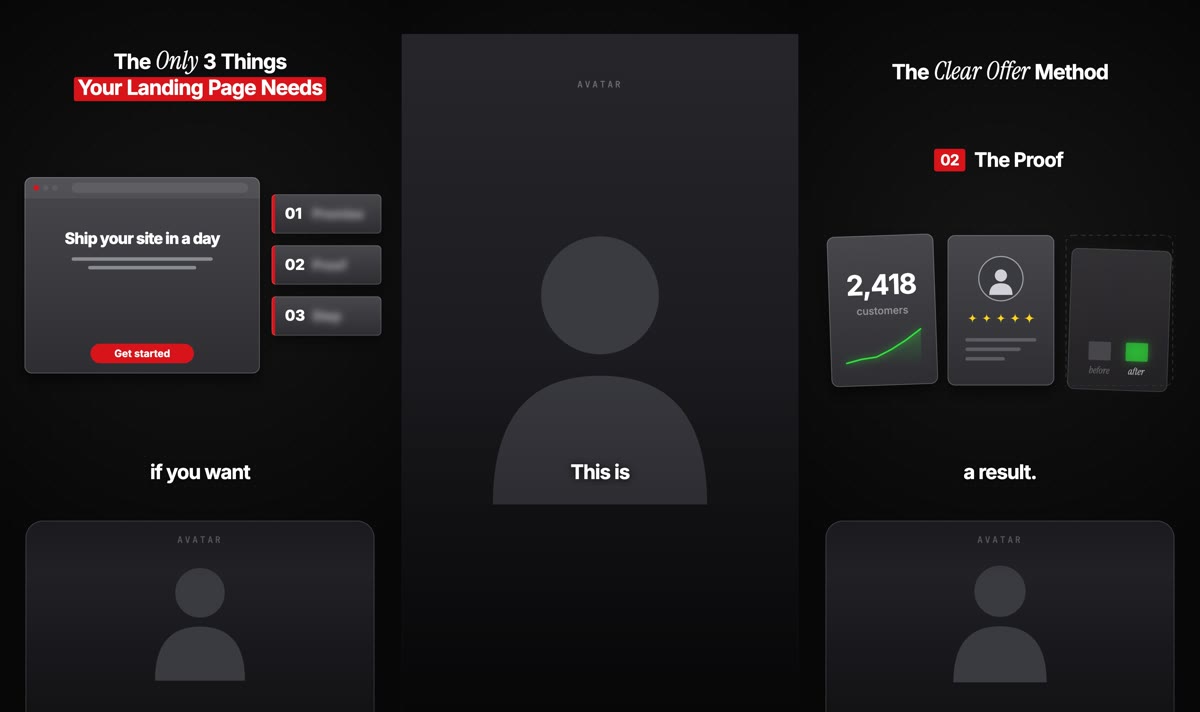
Prefer the light Whiteboard? Pick it in the style menu of the YouTube tab, or add Style: Whiteboard to your request.
No script is written, no voice is generated and no avatar is rendered. What you said is the script. The reel is as long as the part of your video that is used.
Three ways to use it
- Filmed for the reel
- You record yourself saying what the reel should say, in one take. Upload it and ask for the reel.
- Cut from something you have
- A podcast, a webinar, a long talking video. Upload it and say which part you want. That part becomes the reel.
- From a YouTube link
- The video is already on YouTube. Paste its link and say from when to when, or leave the times out and your AI decides what the video gives. Nothing to upload.
Without a time: one reel or several
With a YouTube link you do not need a time. Your AI reads the whole video first: every sentence with its time, and a picture of the screen every few seconds. Then it decides what the video gives. You do not have to choose:
- One topic that fits one reel
- The video is condensed into one reel: the strongest line first, then the sentences that carry the point. Whole sentences only, in your own words and voice, with the rest left out.
- One topic, too much for one reel
- One reel per step, rule or example, each complete in itself, so nothing is lost.
- Several topics
- One reel per topic that stands on its own. Unrelated topics are not pressed into one reel.
- A hook first
- A part cut from the middle of a video does not start by itself. Each reel opens with a few seconds of your strongest line from that part, the way podcasts open with a teaser, and ends on the conclusion.
- An edited video
- Where your video cuts away from you to graphics, screen recordings or other footage, the reel does not show that picture. Your frame leaves, the graphics take the screen, and your voice carries on.
For several reels your AI first lists what it will make, then builds them one after the other. Each one takes its length from your plan’s minutes. You can also say what you want:
“Use Gabreel to make reels from this YouTube video https://www.youtube.com/watch?v=…”
“Use Gabreel to make one reel from this YouTube video that tells the whole topic in a minute: https://www.youtube.com/watch?v=…”
This is not the same as collecting ideas. Reels made this way are cut from your video. If you want topics for new reels instead, see Ideas from a YouTube video.
How to do it
Upload the video
In Gabreel, open Brand, then Assets, and upload it. Videos cannot be sent through the chat with your AI. With a YouTube link you skip this step.Ask for the reel
Open the video on the Assets page and press Make a reel. Or type it yourself:“Use Gabreel to make a reel from my own footage ‘Pricing talk’.”
“Make a reel from my video ‘Podcast episode 12’: use the part where I talk about pricing, and cut the pauses.”
With a YouTube link, open the YouTube tab under Create a reel on your dashboard and paste the link. Fill in From and To for a part you know, or leave both empty and your AI decides. Or name the part in the chat, in minutes and seconds:“Use Gabreel to make a reel from my YouTube video https://www.youtube.com/watch?v=… from 2:10 to 2:55.”
Check the names
Gabreel writes down every word you say. Brand names, people and numbers are what it gets wrong, and the captions show them. Give your AI the right spelling. The sound is not touched.Get the reel
Your AI builds the graphics on your words, a draft is checked, and the final upright 1080 × 1920 video lands in your dashboard.
Changes work as in any reel:
“Zoom in on me a little in the frame at the bottom.”
“Start ten seconds later and end after “that is the whole trick”.”
Good to know
- File
- MP4, MOV or WebM, up to 500 MB.
- YouTube link
- A public video: a normal link, a youtu.be link or a Short. Only the parts that are used are fetched, in up to 1080p, and they are not added to your asset library. Private, age-restricted and members-only videos and running live streams do not work. Use videos you made or have the right to use.
- Without a time
- Your AI reads up to 40 minutes of the video in one go, and reads on if the video is longer. Reading takes one to three minutes. A cut can be joined from up to 12 parts.
- Text in your video
- Subtitles, name tags and other text that is part of your video’s picture stay in it. Your AI frames you so they are cut off where that works.
- Length
- Up to 3 minutes of one video per reel. A longer video is fine: say which part to use, or let your AI choose. The reel takes its length from your plan’s minutes: see Reel length and your monthly allowance.
- Format
- Upright or wide both work. Frame yourself from the chest up with some room above your head, and stay in the middle of the picture: on key sentences the middle fills the whole frame.
- What is cut
- The silence before your first and after your last word. Pauses in between only if you ask for it; they are then cut out of sound and picture.
- Sound
- It is used as you recorded it, only made evenly loud. Record in a quiet room, close to the microphone.
- What you need
- Nothing but the video. Gabreel writes down your words itself. HeyGen is not needed.
- Languages
- Bulgarian, Croatian, Czech, Danish, Dutch, English, Estonian, Finnish, French, German, Greek, Hungarian, Italian, Latvian, Lithuanian, Maltese, Polish, Portuguese, Romanian, Russian, Slovak, Slovenian, Spanish, Swedish and Ukrainian. For another language, add your own ElevenLabs key in Settings.
- With an ElevenLabs key
- If you connected ElevenLabs under Integrations, your words are written down with it instead. It knows more languages. It costs a fraction of a cent per reel from your ElevenLabs account; no voice credits are spent.
- Scheduled reels
- Reels that Gabreel produces on its own from your planner are not made from footage. Make the reel in the chat, then schedule it.
If something goes wrong
- The upload fails
- Check the file type and size. If your asset library is full, remove files you no longer need.
- “YouTube refused the download”
- YouTube sometimes turns our servers away. Ask your AI to try again after a few minutes. If it keeps failing, download the video yourself and upload it to your assets.
- “This YouTube video cannot be read”
- The video is private, age-restricted, for members only, blocked in a region or removed. Set it to public or unlisted, or upload the file.
- “does not understand” a language
- Your video is in a language the built-in transcription does not know. Connect ElevenLabs under Integrations. If your key is restricted, give it access to Speech to Text.
- Words are written wrong
- Names, brands and numbers are what gets misheard. Tell your AI the right spelling; it corrects the captions without touching the sound.
- “No spoken words were found”
- The part that was chosen has no speech, or the video has no sound. Ask for another part or upload the video with its sound.
- The cut leaves out something important
- Say what is missing ("keep the Costco example") or name the times yourself. The cut is made again; nothing is lost.
- The reel shows something other than you
- A piece of B-roll was not recognised. Tell your AI the moment ("hide the video from 0:12 to 0:18").
- A caption shows a wrong word
- Tell your AI the word and how it is spelled. It corrects the transcript and renders again.
- Your head is cut off or too small
- Ask to move or zoom the video in its frame.
- The picture runs ahead of the sound
- Ask: “Process the original footage again with the same cut, then check the picture and sound near the end.” This rebuilds the clip timing; an already exported reel needs a new render.
- The colours look flat
- The video was filmed in HDR. Export it as a normal (SDR) video and upload it again.